Angleur
16 May 20255 min read
Setting up a clean World of Warcraft UI usually means installing several different AddOns, configuring each one separately and then trying to make everything look like it belongs together.
EllesmereUI takes a different approach. Instead of replacing only one part of the interface, it is designed as a complete modular UI suite. Unit frames, action bars, nameplates, damage meters, bags, cooldown tracking and several quality-of-life tools can all be handled from one AddOn.
For WoW Forever, that makes EllesmereUI especially useful if you want a clean interface without building an entire AddOn collection from scratch. This guide explains how to install EllesmereUI, import the xScarlife EllesmereUI package and apply the matching Blizzard Edit Mode layout.
EllesmereUI is a modular World of Warcraft interface replacement developed by Ellesmere. Unlike AddOns that focus on a single feature, EllesmereUI combines many different UI systems into one package.
EllesmereUI also includes an Unlock Mode that lets you move, align, anchor and resize interface elements visually. The main advantage is simple: you can manage much more of your WoW UI from one system instead of maintaining several unrelated AddOns.
A complete WoW interface can quickly turn into a long AddOn list. You may install one AddOn for unit frames, another for nameplates, another for damage meters, another for bags and several smaller AddOns for quality-of-life improvements.
EllesmereUI can replace many of those separate AddOns. Specialized tools can still provide functionality that EllesmereUI does not try to replace, but the core interface can share one design and configuration system. That makes the setup easier to maintain and helps prevent conflicts between AddOns that try to control the same part of the interface.
EllesmereUI officially supports modern Retail World of Warcraft and WoW Forever. You do not need to search for an unofficial Forever fork.
Before you install EllesmereUI, download it from an official source such as CurseForge or Wago Addons.
Using an AddOn manager also makes future updates easier because you can update EllesmereUI without manually replacing files.
You can also install EllesmereUI manually after downloading it directly. Extract the downloaded files and place the AddOn folders inside the appropriate World of Warcraft Interface/AddOns directory.
If you are unfamiliar with manual AddOn installation, I recommend CurseForge or another supported AddOn manager. It removes most of the risk of installing EllesmereUI into the wrong WoW folder.
When you log into World of Warcraft with EllesmereUI enabled for the first time, the AddOn lets you choose which modules you want to use. You are not forced to replace everything immediately.
If you plan to use my complete xScarlife profile, start with the modules intended by the profile rather than heavily customizing everything before the import. The profile already configures the built-in tools and quality-of-life features as one package.
Before making major UI changes, create a backup of your World of Warcraft settings. AddOn configurations are stored in your WTF folder. If a profile is reset or settings are removed during troubleshooting, that backup can save a lot of time.
If you are unfamiliar with the process, read my WTF Folder backup guide before continuing.
The complete xScarlife setup uses two imports: one all-in-one EllesmereUI profile and one matching Blizzard Edit Mode layout.
Reload the interface when EllesmereUI requests it. You can also reload manually by entering /reload in chat.
The xScarlife EllesmereUI profile was built for a 1440p display with a 0.5333 UI scale. UI scale affects the apparent size and positioning of interface elements.
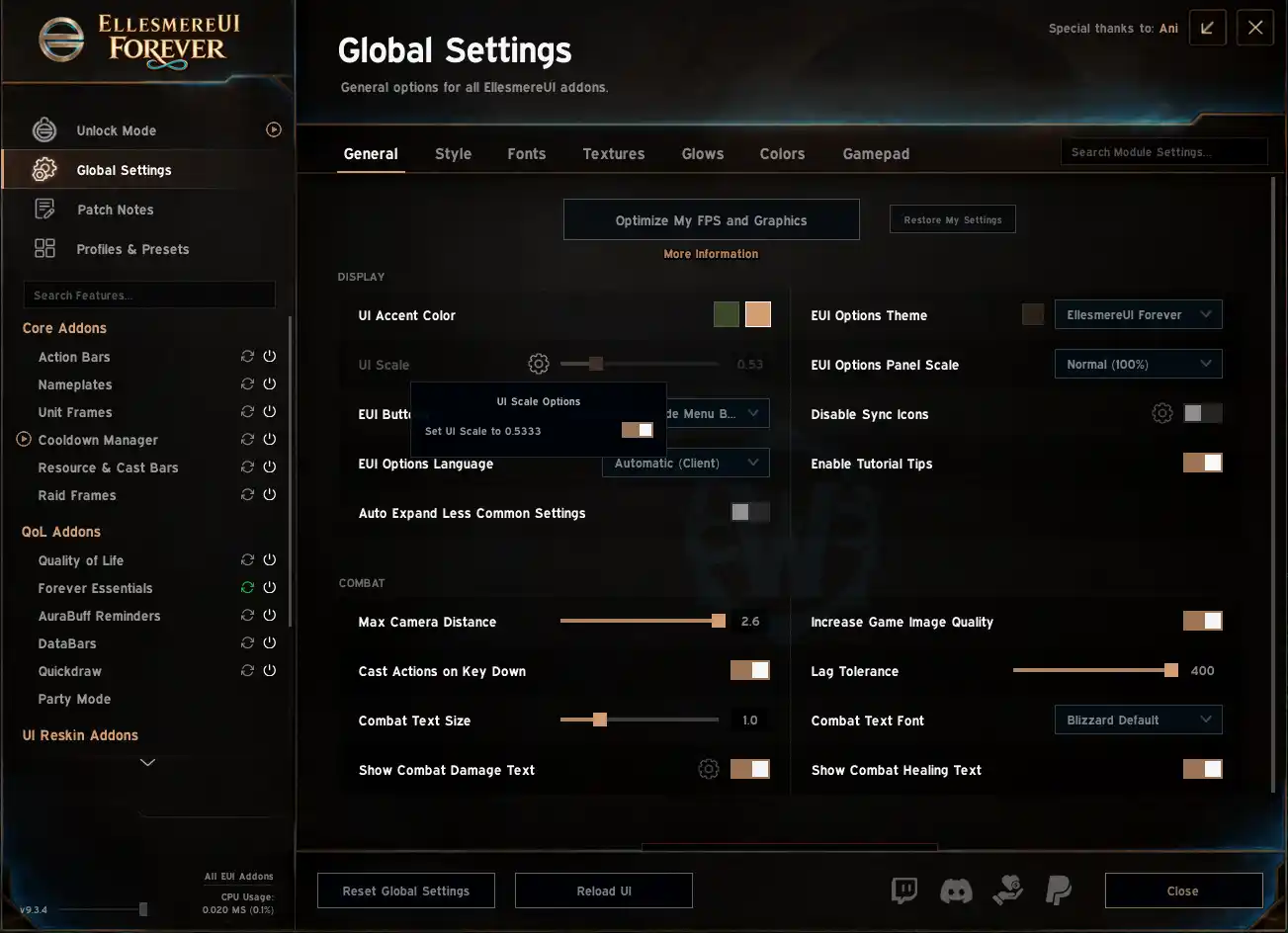
If you use a lower or otherwise different screen resolution, some frames may still need to be repositioned after the import. Check the UI scale before moving everything manually.
Import the profile, reload your UI and actually play with it for a while. A complete layout positions unit frames, action bars, cooldowns, damage meters and other elements in relation to each other.
EllesmereUI also supports anchoring and size relationships between interface elements. Changing one element without understanding those relationships can affect more of the layout than expected. Use the profile as intended first and customize it only after you understand Unlock Mode and the anchoring system.
The xScarlife profile gives you a ready-to-use setup without requiring you to configure every module manually. You can still create your own setup afterward, but heavy modifications make troubleshooting much more difficult because your settings no longer match the shared version.
If you want to experiment extensively, create or duplicate another profile and make your changes there. Keep the original xScarlife profile available as a reference.
EllesmereUI includes its own damage meter system. Players who mainly want to monitor normal combat performance may not need a separate meter AddOn. Dedicated analysis tools can still offer more specialized functionality.
Enemy nameplates, action bars and player, target, focus and boss frames can all be handled by EllesmereUI. Aura display and filtering options are also available, keeping important combat information inside the same visual system.
The built-in Cooldown Manager can organize cooldowns, buffs and other ability information into configurable bars. This lets you build a large part of your combat HUD directly inside EllesmereUI.
The xScarlife package also configures bag handling, Quick Loot, Auto Repair, Auto Sell Junk, FPS Counter, Skip Cinematics, Auto-Fill Delete Confirmation and other everyday conveniences. Separate bag, speedy autoloot or basic utility AddOns are not required for these included features.
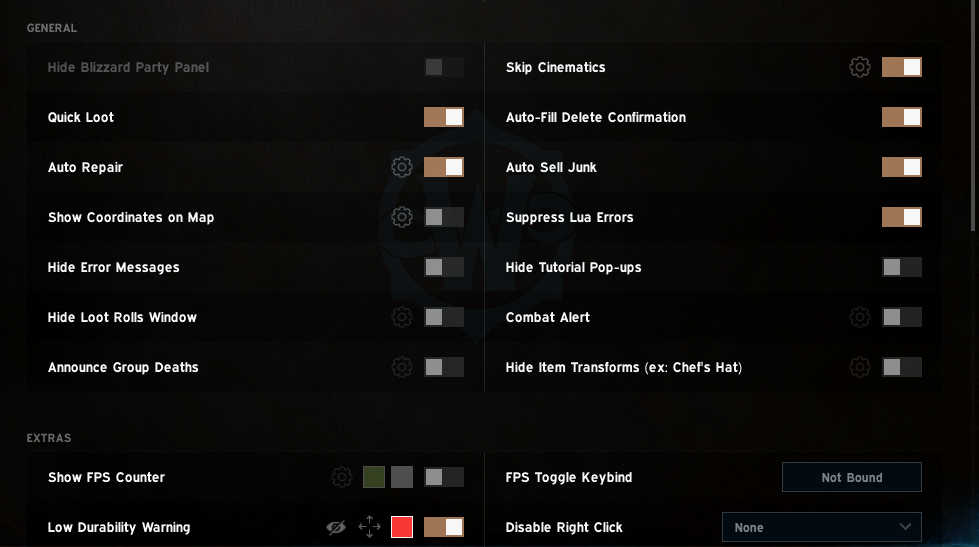
The goal is not to install the smallest possible number of AddOns. The goal is to avoid installing additional AddOns when EllesmereUI already handles the feature you need.
If another AddOn provides specialized functionality you genuinely need, there is nothing wrong with using it alongside EllesmereUI. Before installing another UI AddOn, however, check EllesmereUI first. The feature may already be available inside one of its modules.
EllesmereUI is actively developed, so keeping it updated is important, especially around World of Warcraft patches and WoW Forever updates. If something behaves differently after a game update, check for a newer EllesmereUI version before resetting your profile or deleting settings.
If you install EllesmereUI and the profile does not look correct after importing, check these points before changing individual settings:
/reload.If the original profile works but the layout breaks after your changes, re-importing the original profile is usually a better troubleshooting step than repairing dozens of individual settings.
The xScarlife EllesmereUI profile is a community profile I created so other players can use my layout. I am not the developer of EllesmereUI.
Actual EllesmereUI bugs, Lua errors or AddOn-specific technical problems should be reported through the official EllesmereUI support channels. Questions specifically about my profile, its layout or these setup instructions can be sent through the xScarlifeUI feedback page.
Yes. EllesmereUI officially supports WoW Forever as well as modern Retail World of Warcraft.
Not necessarily. EllesmereUI includes its own damage meters. A dedicated combat-analysis AddOn may offer specialized functions, but many players will not need another meter for normal use.
Yes. Nameplates are one of the interface systems that EllesmereUI can replace and customize.
No. It can replace many interface and quality-of-life AddOns, but specialized AddOns may still provide features outside its scope.
You can customize EllesmereUI, but keep an untouched copy of the original xScarlife profile. For extensive changes, create a separate profile so the shared version remains available as a reference.
Check your screen resolution, UI scale, enabled EllesmereUI modules and whether both complete strings were imported. Avoid manually repositioning everything until those settings have been verified.
EllesmereUI brings many parts of the World of Warcraft interface together in one modular AddOn. Instead of building your UI around separate tools for unit frames, nameplates, damage meters, action bars, bags and smaller improvements, you can manage much of the setup from one configuration system.
Install EllesmereUI first, import the xScarlife EllesmereUI package and Blizzard Edit Mode layout, set the correct UI scale and spend some time playing with the layout before changing it.