
Retail healer profiles
Heal every fight. Keep your UI familiar.
Install the complete healer setup with the xScarlifeUI in-game installer, or use the library below when you want to copy individual profiles manually.
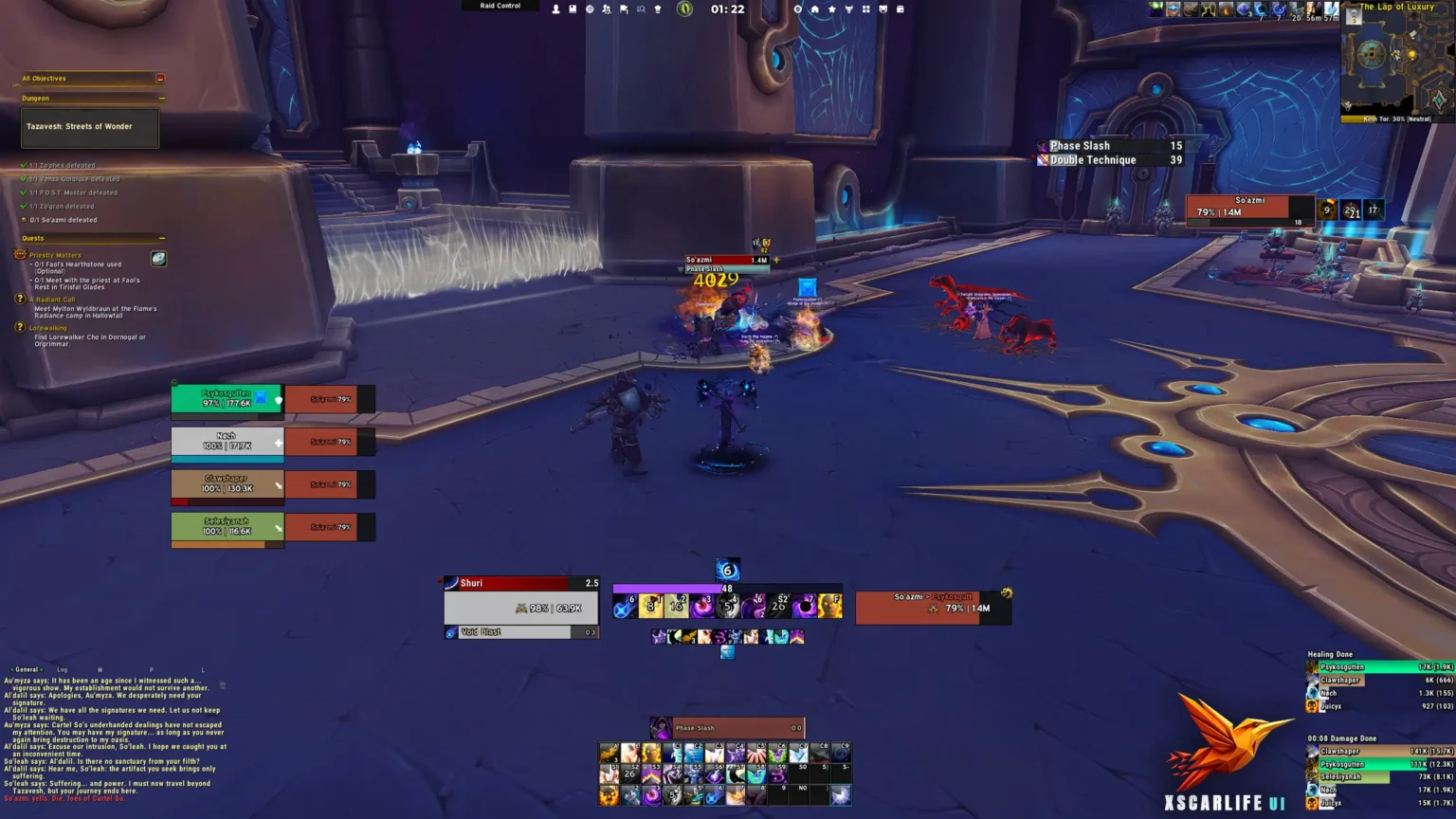
Profile library
Choose your game version
Each client keeps its own profile set, so you always copy the strings built for the version you play.

9 profiles
8 profiles · current
6 profiles

6 profiles

6 profiles
Recommended
Install the complete profile automatically
The xScarlifeUI AddOn includes a custom in-game installer that can apply the ElvUI foundation and supported AddOn profiles for you. Use the manual cards below only when you want to import individual profiles.
You stay in control. Choose what gets applied and skip the parts you already configured.

Manual installation
Back up, then load in order.
The healer layout combines a shared ElvUI foundation with role-specific Blizzard and combat profiles. Importing in sequence keeps every layer aligned.
Enable ElvUI and every supporting AddOn before importing a string.
Import Main ElvUI (Healer), ElvUI Private and WindTools before the encounter tools.
Complete the six guided steps below and map the healer profile to each healing specialisation.
Copy and import
Retail healer profile library
Healer foundation
The ElvUI healer layout and its supporting layer establish the shared visual foundation used by every healing specialisation.
Main ElvUI (Healer)
The xScarlifeUI healer layout for ElvUI in Retail, meant to be assigned to your healer specialisation alongside the main profile.
ElvUI Private
Character-specific settings such as unitframes, actionbars and other personal UI options.
ElvUI WindTools
Custom WindTools profile that replaces the default micro menu and clock and moves them to the top of your screen.
Encounter tools
Details and BigWigs keep incoming damage, boss mechanics and encounter timing readable without crowding the healing workspace.
Details Damage Meter
Custom Details profile with layout and styling designed to match the xScarlifeUI look and feel.
BigWigs (Healer)
BigWigs profile with clean positioning and styling for boss timers and alerts, fully integrated with xScarlifeUI.
Jundies Platynator
The Platynator profile used with xScarlifeUI. This profile is created by Jundies and opens on its original Wago page.
Role-specific Blizzard layer
Edit Mode, centred cooldowns and the class resource bar complete the healer-specific parts outside the ElvUI profile.
Blizzard Edit Mode (Healer)
Layout and positioning profile for Blizzard Edit Mode, aligned with the xScarlifeUI healer layout.
Cooldown Manager Centered (Healer)
Centered Cooldown Manager profile for icons, buffs and bars, styled to match xScarlifeUI.
Sensei Class Resource Bar (Healer)
Health bar, primary and secondary class resource bars, configured for the Midnight expansion.
Installation walkthrough
Set up the healer profile without guesswork.
Six visual checkpoints take you from the ElvUI foundation to the final BigWigs assignment. Select any screenshot to inspect it at full size without leaving this page.
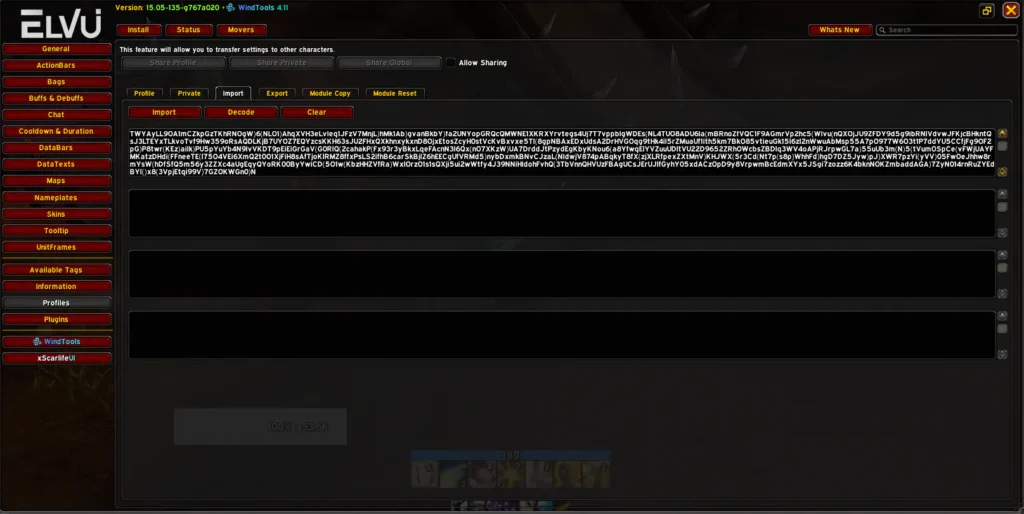
Import the healer foundation
Open /ec → Profiles → Import Profile, paste the Main ElvUI (Healer) string and complete the import. Keep this profile selected while you continue.
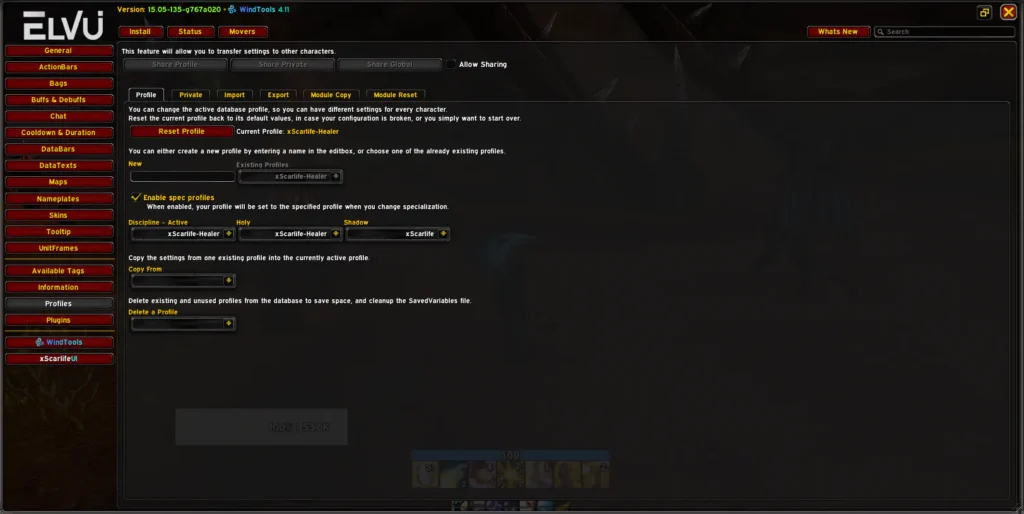
Assign the right profile to every role
Enable Use Profiles Per Specialization. Assign xScarlife-Healer to each healing specialisation and the standard xScarlife profile to damage or tank specialisations.
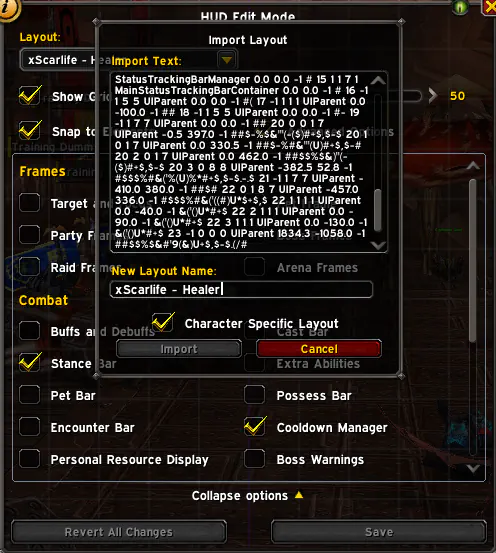
Protect your character-specific layout
Open Blizzard Edit Mode and enable Character Specific Layout before importing the healer layout. This prevents the role-specific arrangement from overwriting a shared layout.
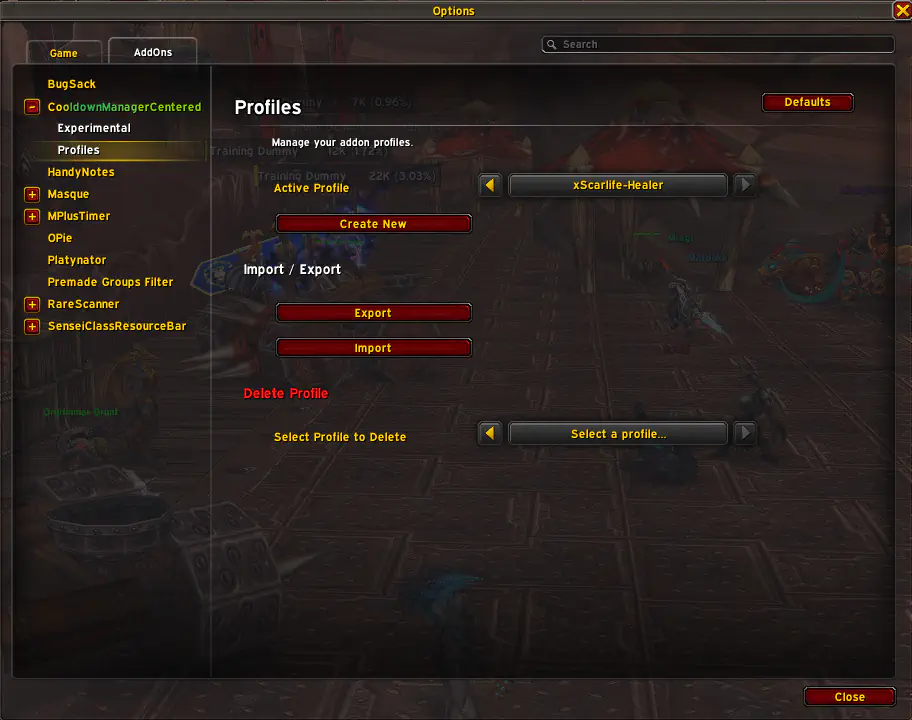
Load the centred cooldown layout
Import the Cooldown Manager Centered (Healer) string, then select xScarlife-Healer for the healer specialisations that should use it.
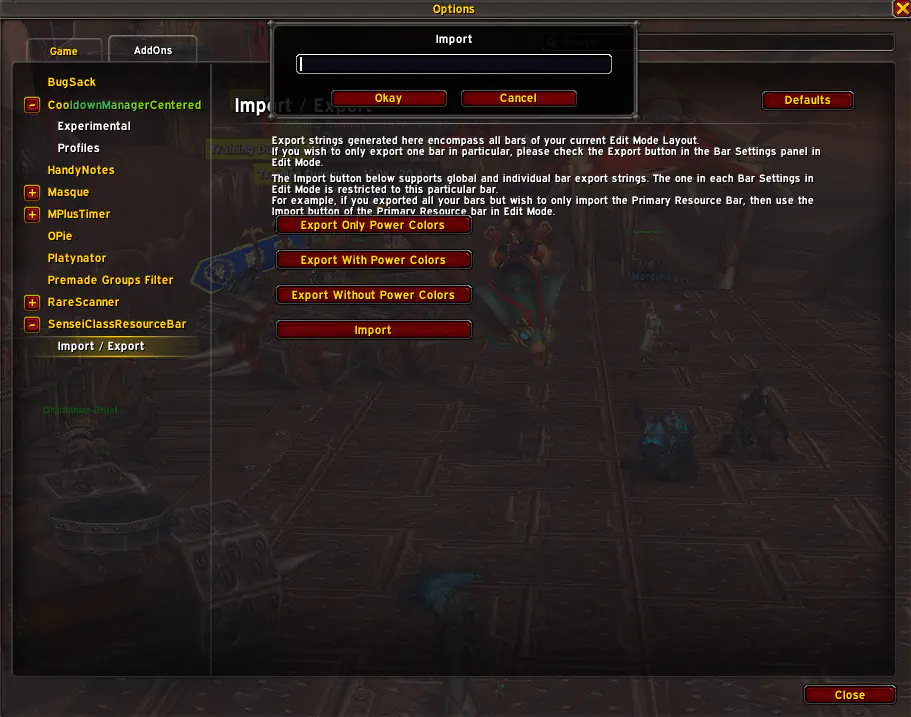
Import the healer resource bar
Open Sensei Class Resource Bar, import the SCRB Healer string and select the healer profile for the relevant specialisations.
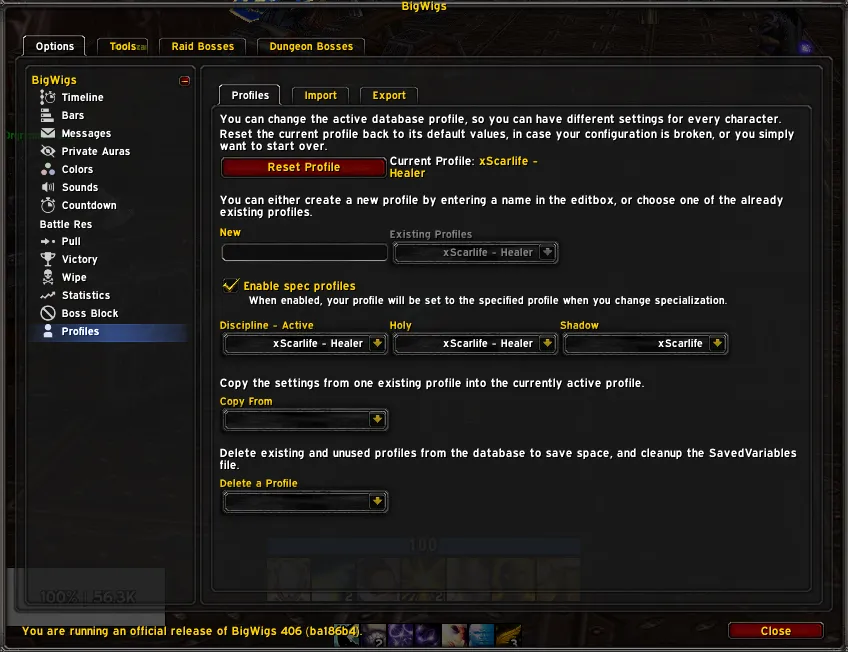
Finish the encounter profile
Open /bigwigs → Profiles → Import Profile, paste the BigWigs healer string and assign xScarlife-Healer to each healing specialisation.
Class-specific cooldown profiles
For class-specific Blizzard Cooldown Manager layouts, use Luxthos’ maintained profile library. Import the profile for your specialisation, then select it for Essential Cooldowns, Utility Cooldowns and Tracked Buffs.
Need help with your healer setup?
Follow the walkthrough above or ask the community if a profile does not land where expected.