
Damage meters
Combat numbers are part of EllesmereUI and arrive styled with the rest of the interface.
A complete EllesmereUI profile recreated from the familiar xScarlife ElvUI profile, paired with matching BigWigs settings and a Blizzard Edit Mode layout for WoW Forever.
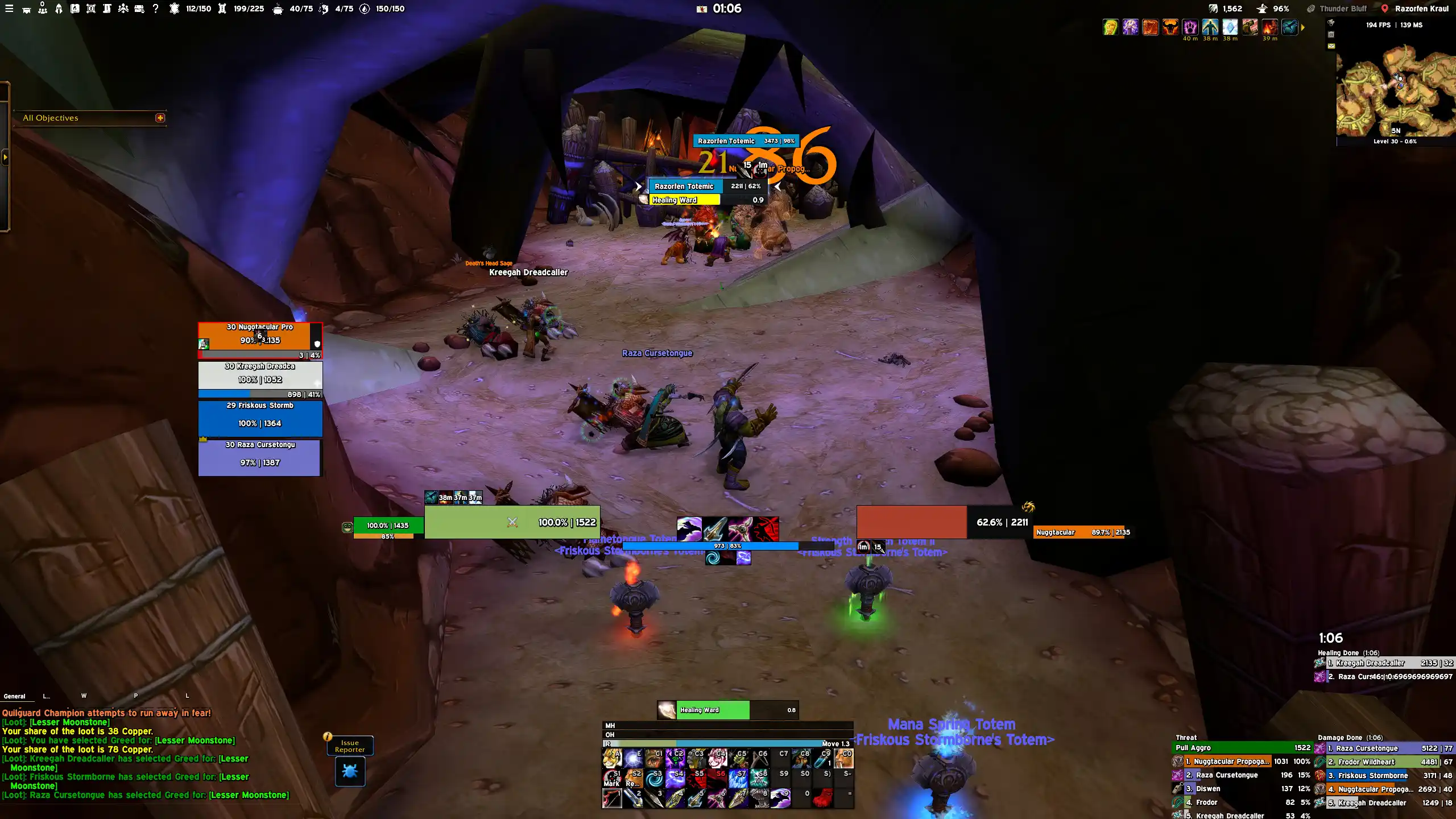
Unlike the ElvUI version, EllesmereUI includes its own damage meters, cooldown manager and everyday quality-of-life tools. The xScarlife profile configures them as one package, so you do not need a stack of extra utility AddOns.
Combat numbers are part of EllesmereUI and arrive styled with the rest of the interface.
Your cooldown display is already positioned and prepared inside the package.
Bag handling and Quick Loot are covered, so separate bag or speedy autoloot AddOns are not required.
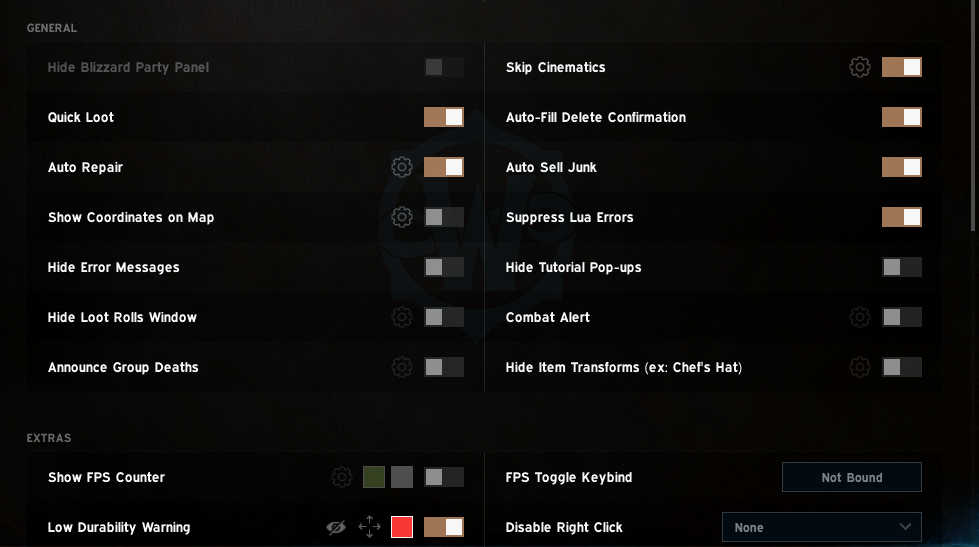
Auto Repair, Auto Sell Junk, FPS Counter, Skip Cinematics, Auto-Fill Delete Confirmation and Suppress Lua Errors are configured for you.
No additional AddOns are needed for these included EllesmereUI features.
The EllesmereUI profile uses one all-in-one package rather than several separate AddOn profiles. Import the matching BigWigs profile next, then finish the parts of the layout managed by Blizzard Edit Mode.
Resolution note: This profile was built for a 1440p display with a 0.5333 UI scale. On lower resolutions, some frames may need to be repositioned manually after importing. I plan to look at providing additional resolution versions later.
New to EllesmereUI? Follow the step-by-step EllesmereUI installation guide before importing.
Install and enable the interface AddOn before importing the profile.
Paste the single all-in-one Ellesmere string into its importer.
Paste the BigWigs string to apply the matching encounter-alert setup.
Apply the matching Edit Mode string to finish the WoW interface layout.
Installation walkthrough
Thirteen visual checkpoints take you from enabling the required EllesmereUI modules to applying the matching Blizzard Edit Mode layout. Open any screenshot to inspect the setting at full size.
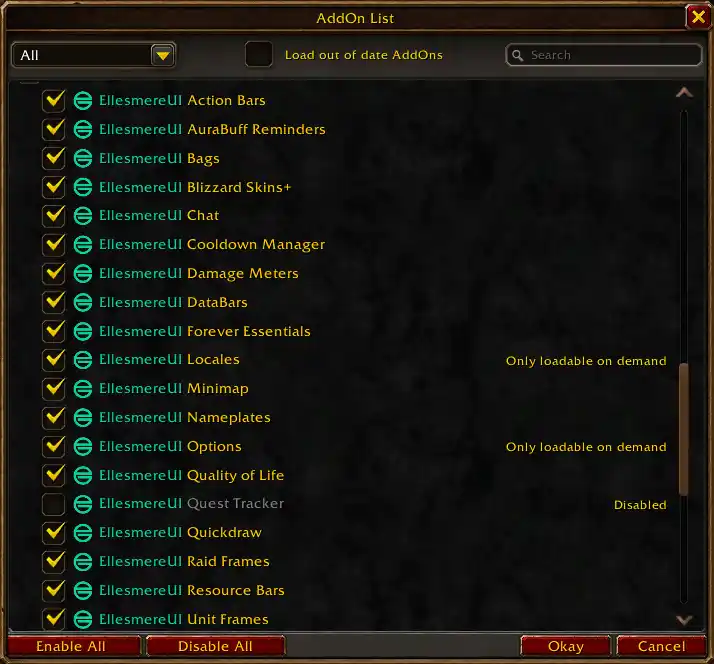
Open the AddOn List before entering the game and enable every required EllesmereUI module shown in the screenshot. This makes every part of the imported package available.
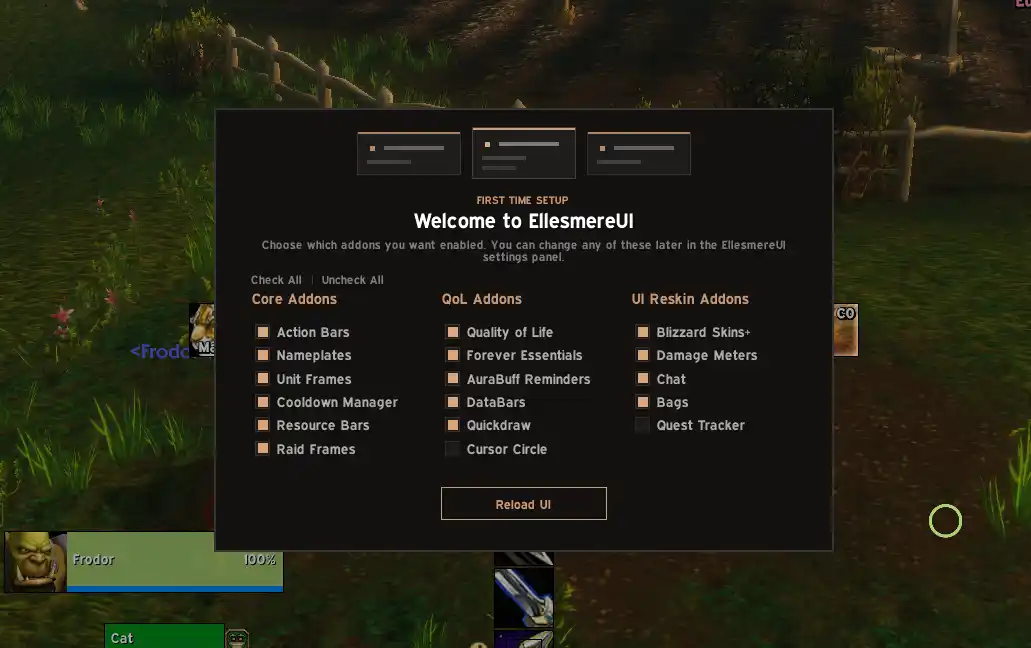
On first launch, select the shown Core AddOns, QoL AddOns and UI Reskin AddOns, then reload the interface.
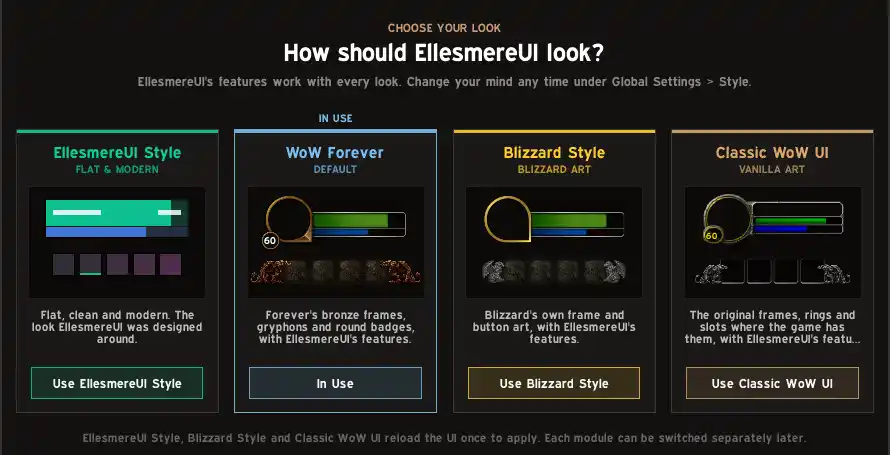
Select Use EllesmereUI Style during the first-time setup. You can change the visual style later through Global Settings.
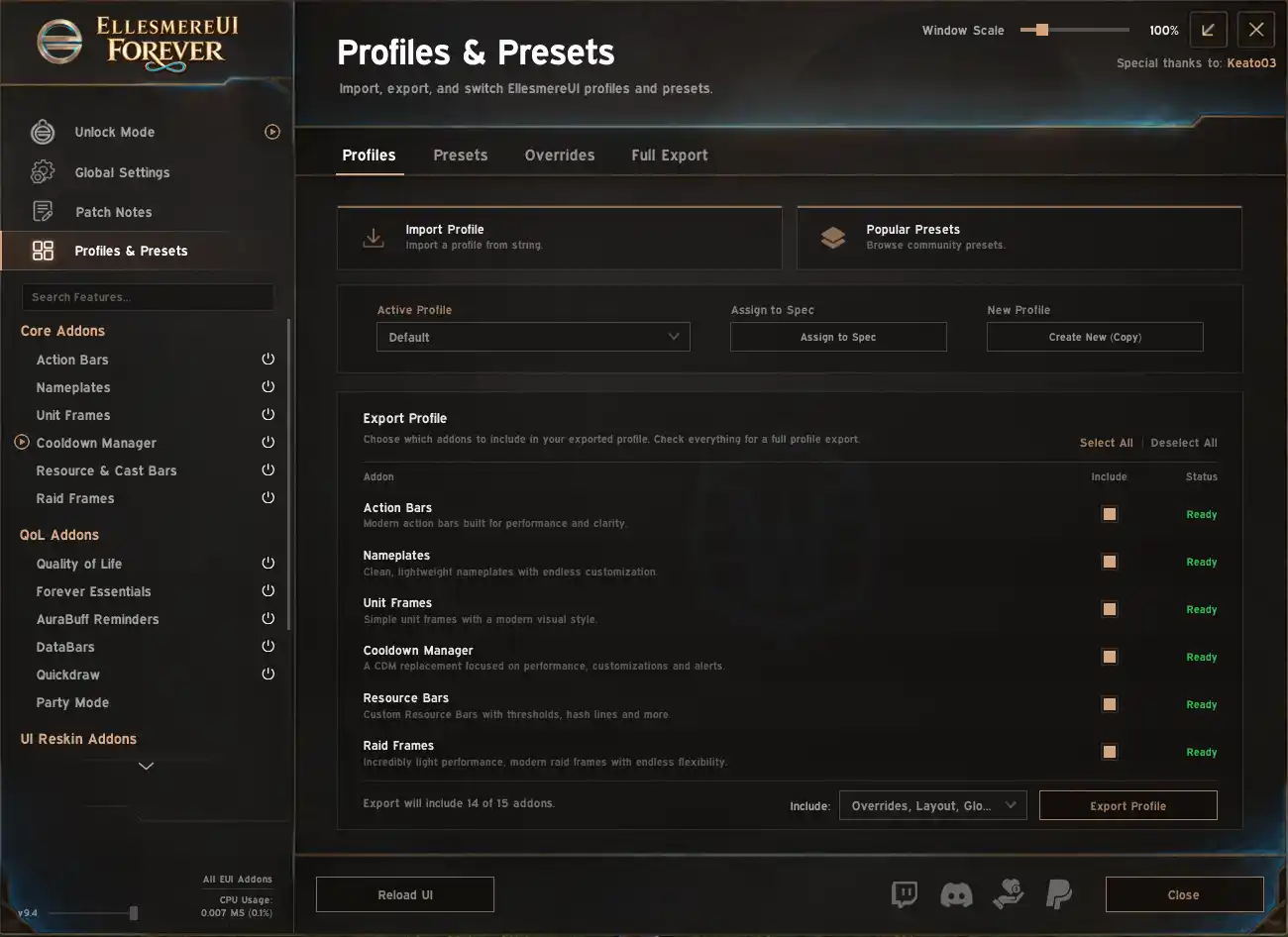
Open EllesmereUI → Profiles & Presets → Profiles, then click Import Profile.
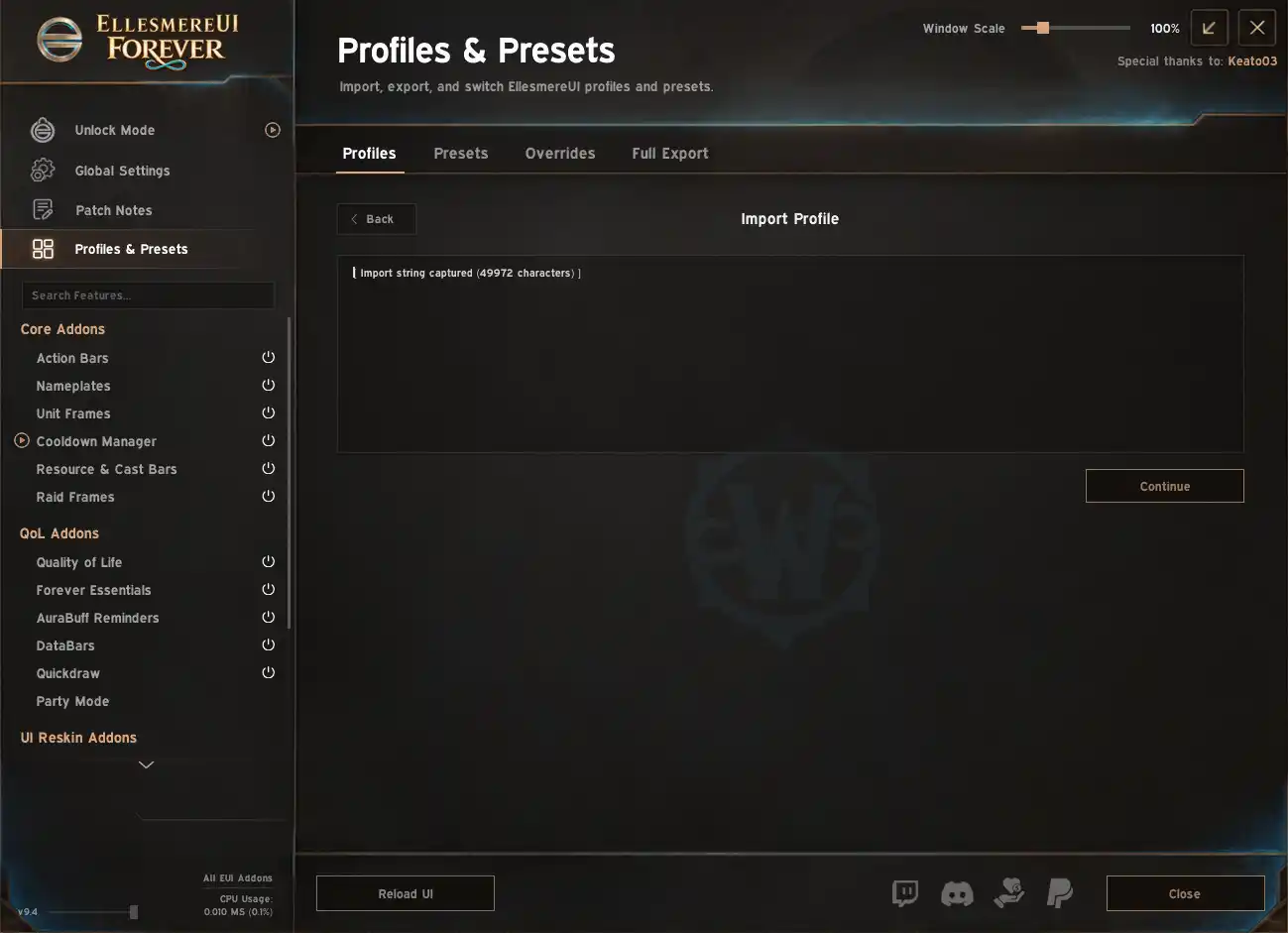
Copy the xScarlife EllesmereUI string from this page, paste it into the import field and click Continue.
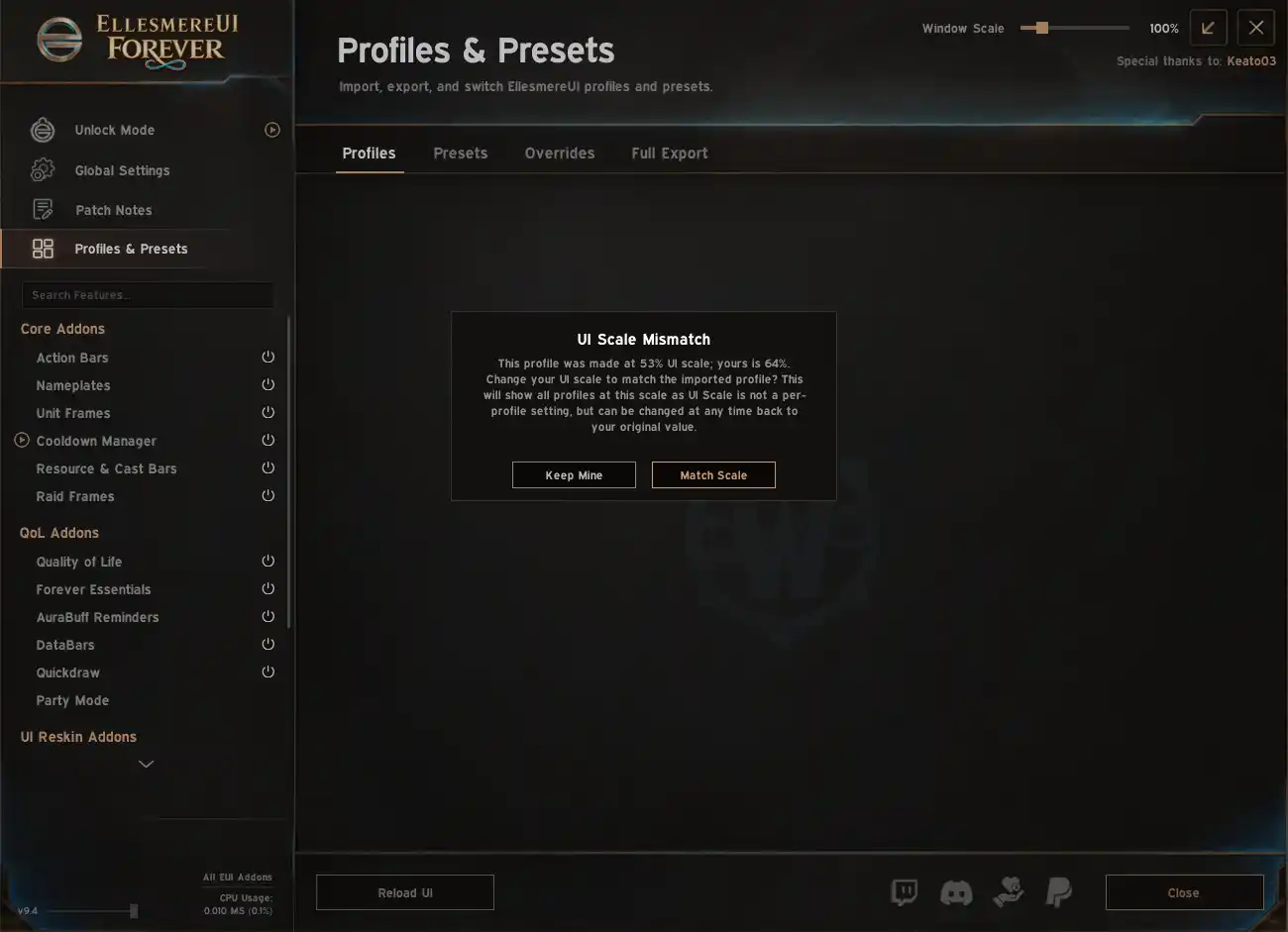
When the scale warning appears, choose Match Scale. This applies the intended 0.5333 scale for the 2560 × 1440 layout.
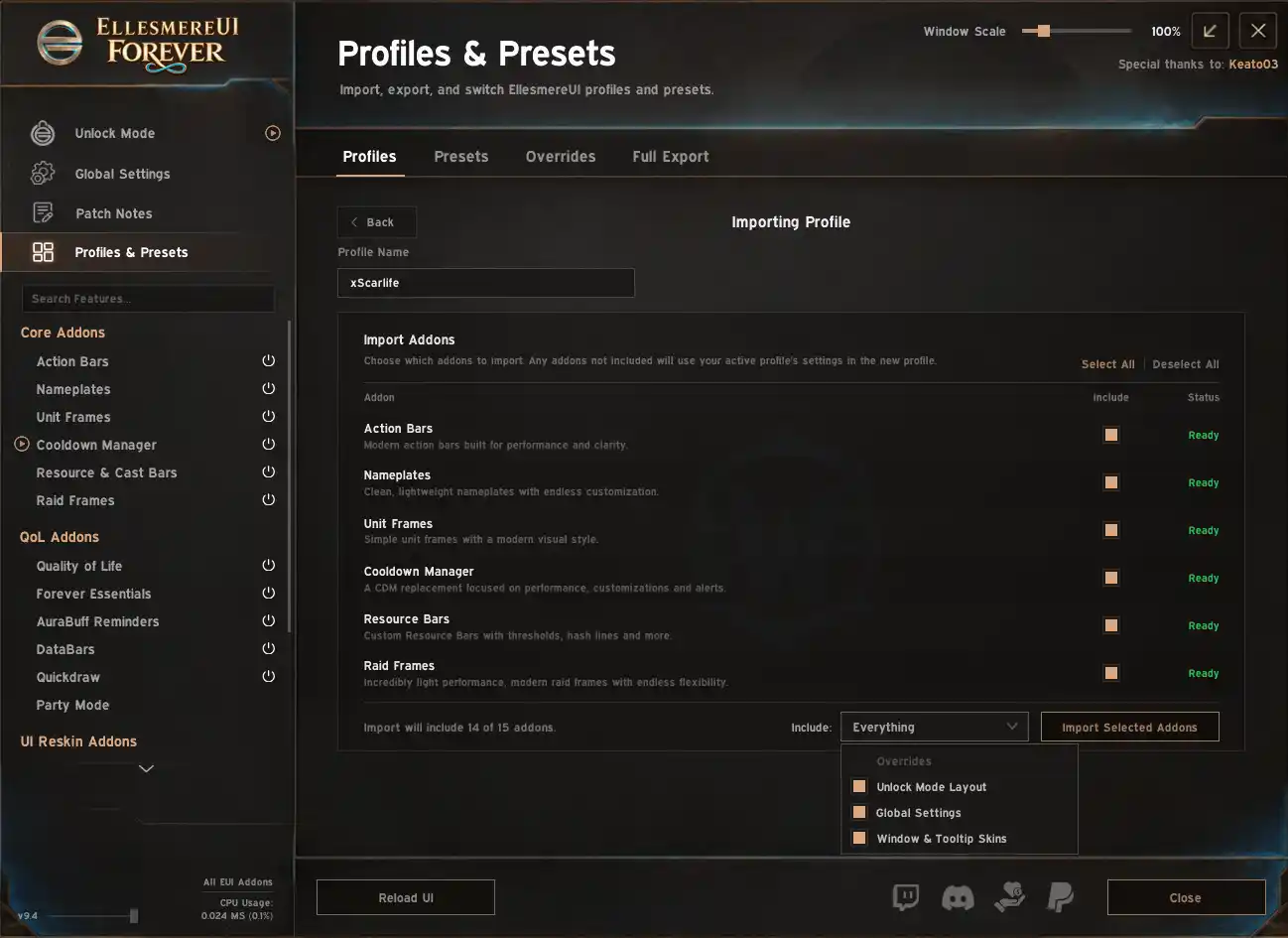
Name the profile xScarlife, set the Include dropdown to Everything and click Import Selected AddOns.
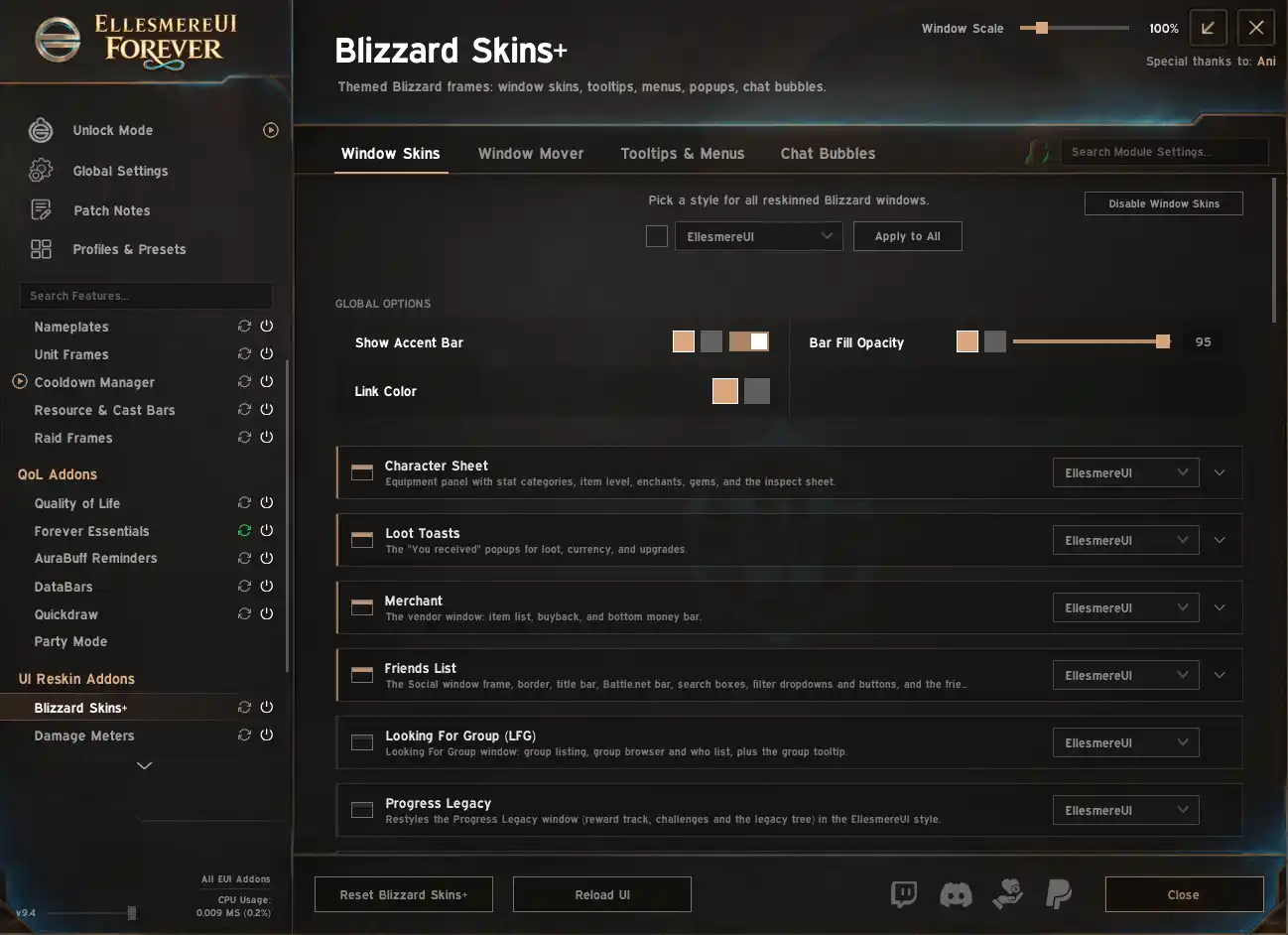
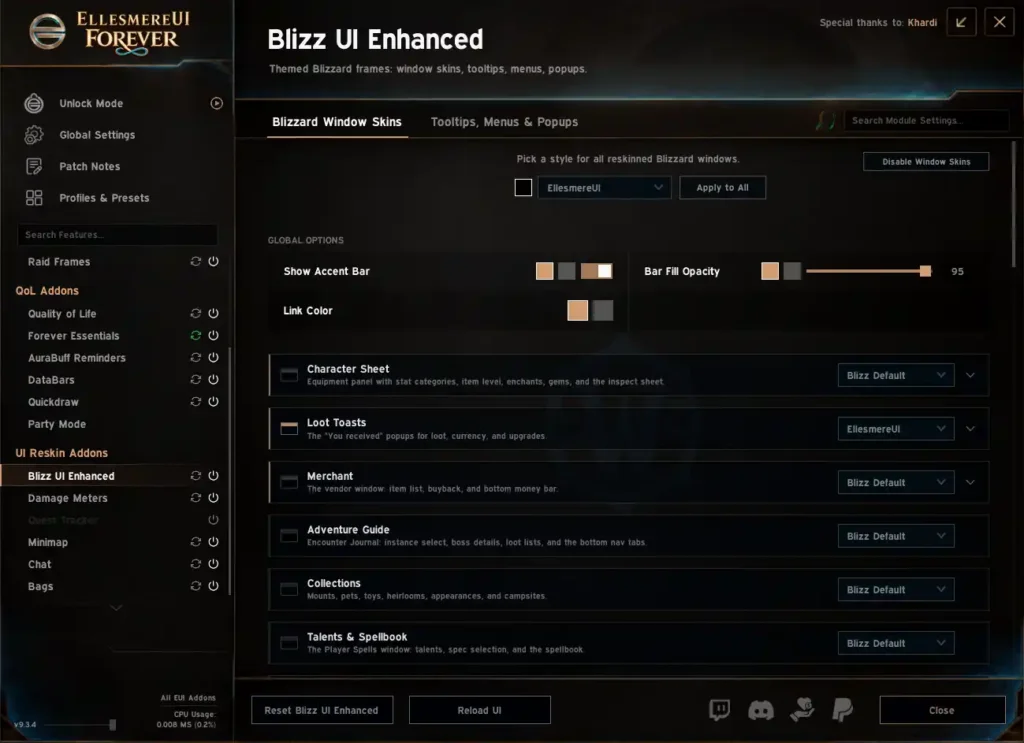
If you prefer Blizzard’s original windows, open Blizzard Skins+ and click Disable Window Skins. Leave them enabled if you want the EllesmereUI appearance.
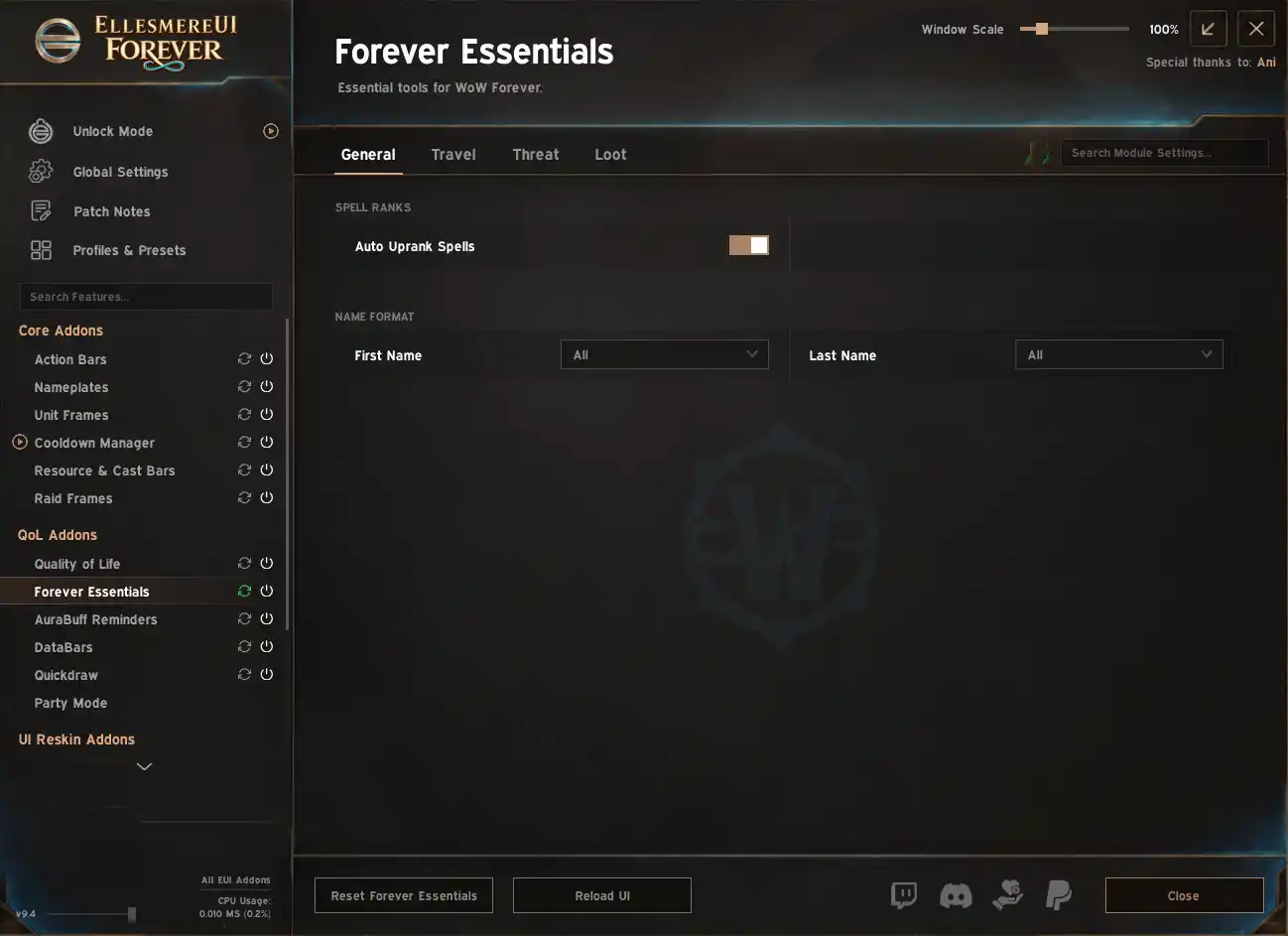
Turn on Auto Uprank Spells so spells placed on your action bars automatically use their highest available rank.
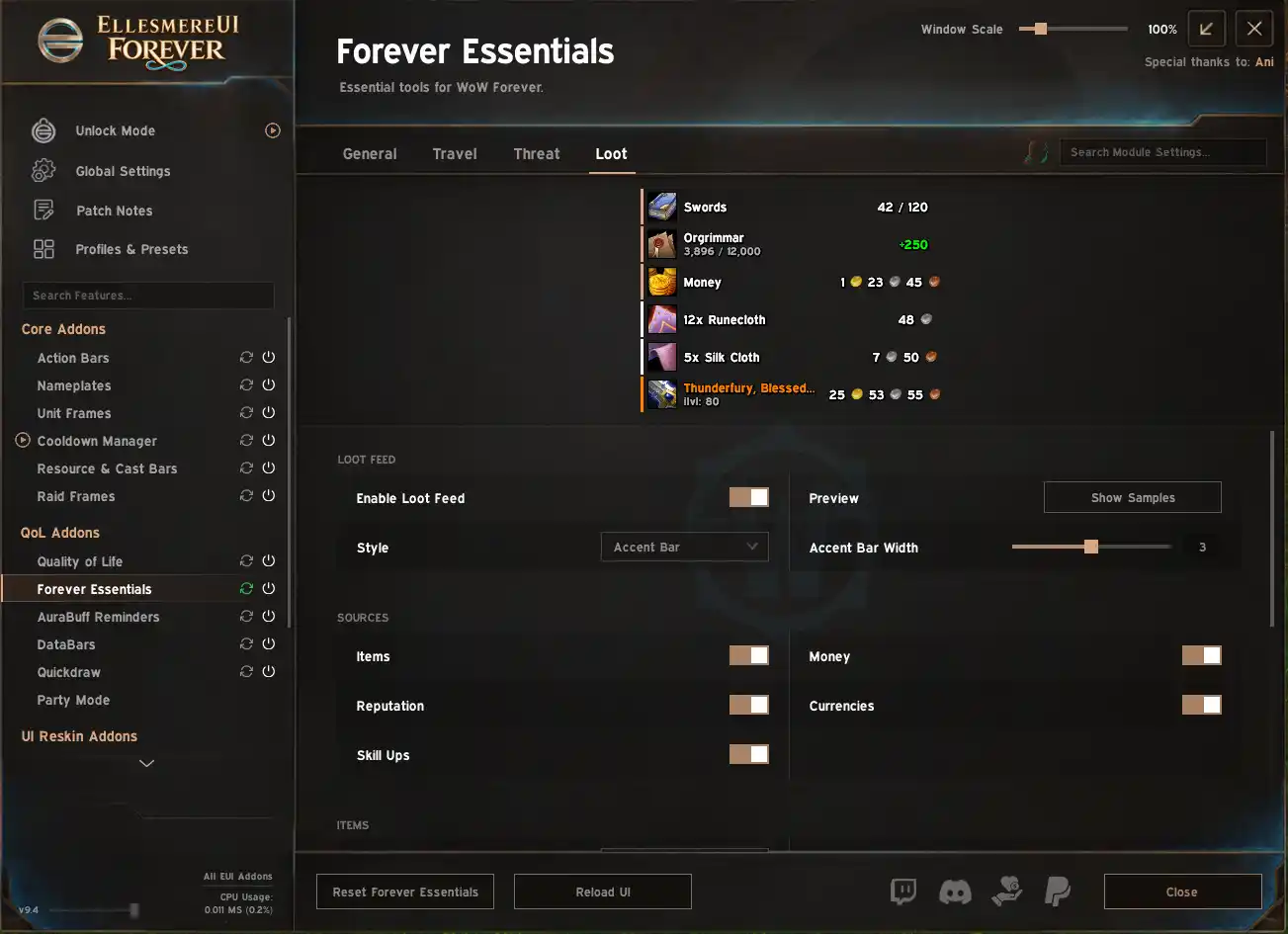
Open Forever Essentials → Loot and enable Loot Feed if you want to use the built-in loot display.
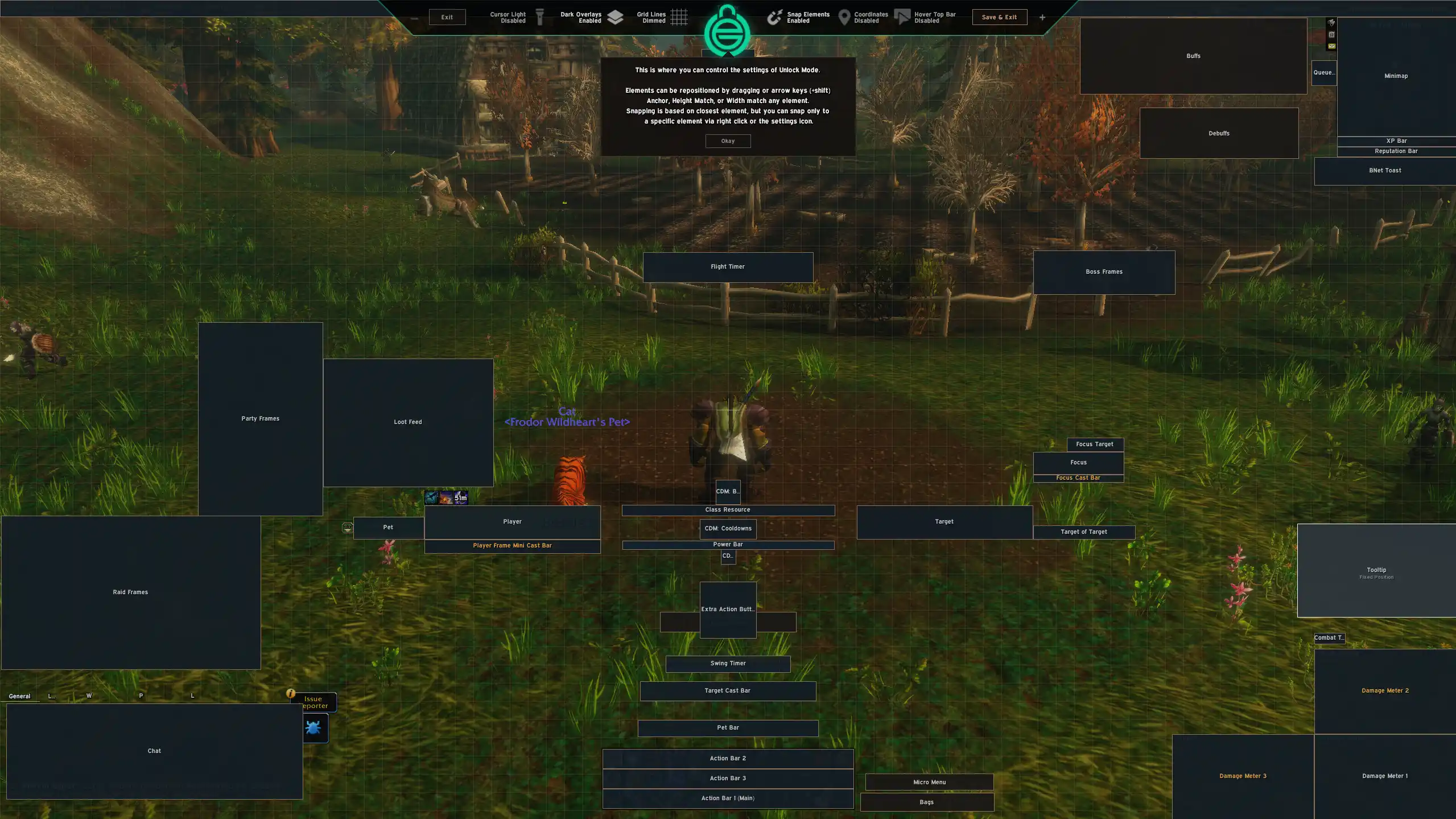
Open Unlock Mode, drag the Loot Feed beside the party frames as shown, then save and exit the layout editor.
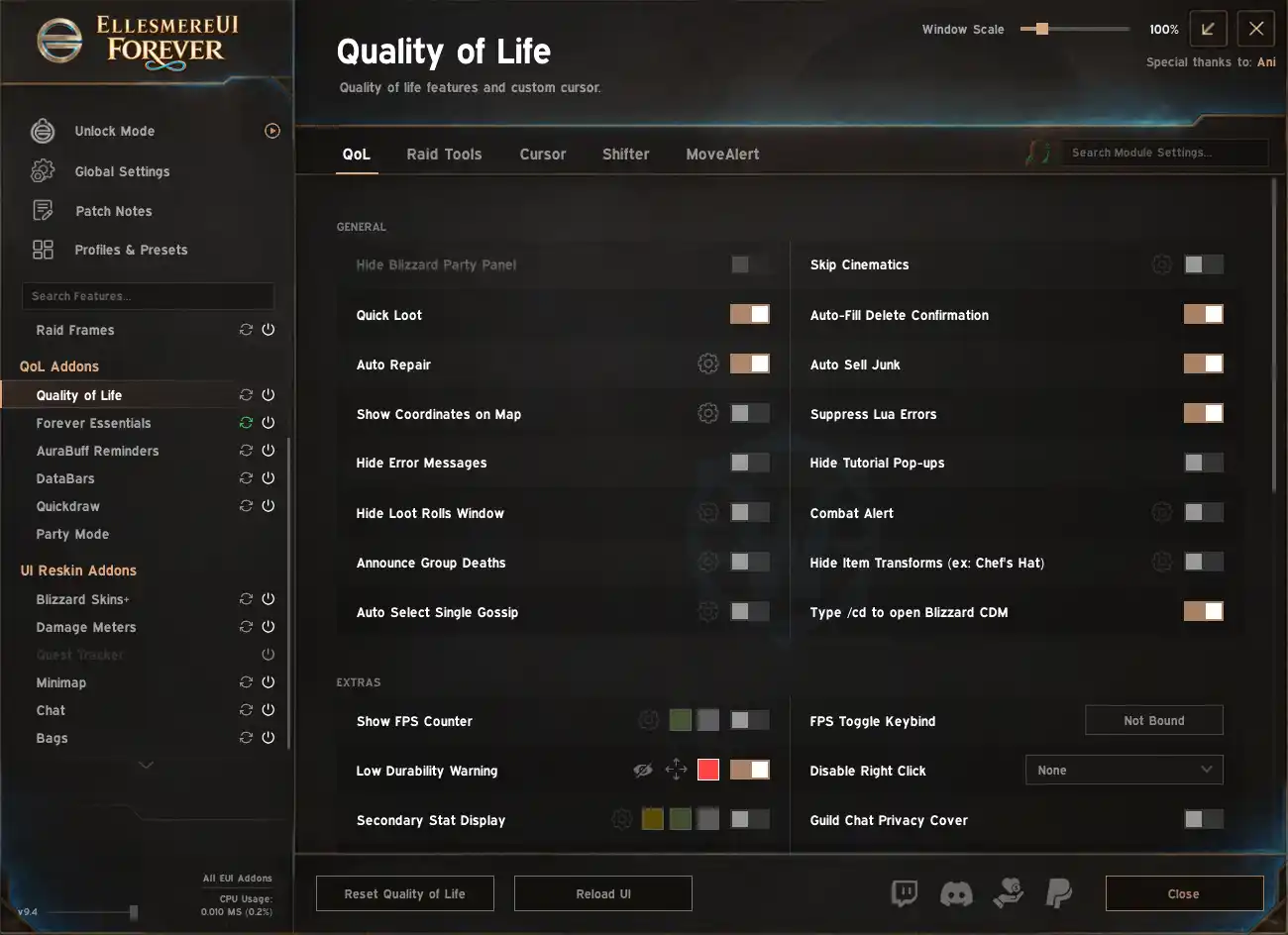
Enable the features you want, such as Quick Loot, Auto Repair, Auto Sell Junk and the FPS Counter.
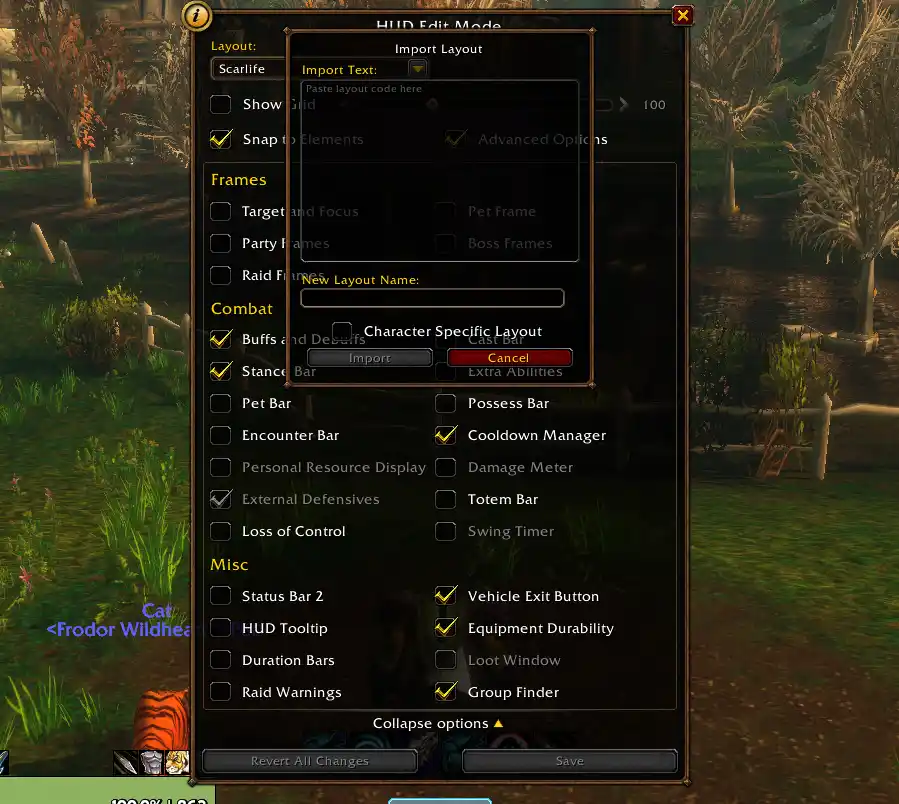
Open Blizzard Edit Mode, paste the second import string, give the layout a name and import it. Select the imported layout as your default layout.
Import the Ellesmere all-in-one package first, then the matching BigWigs profile and Blizzard Edit Mode string to complete the layout.
The complete xScarlife all-in-one EllesmereUI profile for WoW Forever, with the interface, built-in tools and quality-of-life features configured as one package.
The matching BigWigs profile for the xScarlife EllesmereUI setup, with encounter alerts configured to fit the layout. Import this after the EllesmereUI package.
The matching Blizzard Edit Mode layout for the xScarlife EllesmereUI profile. Import this last to finish the interface layout.
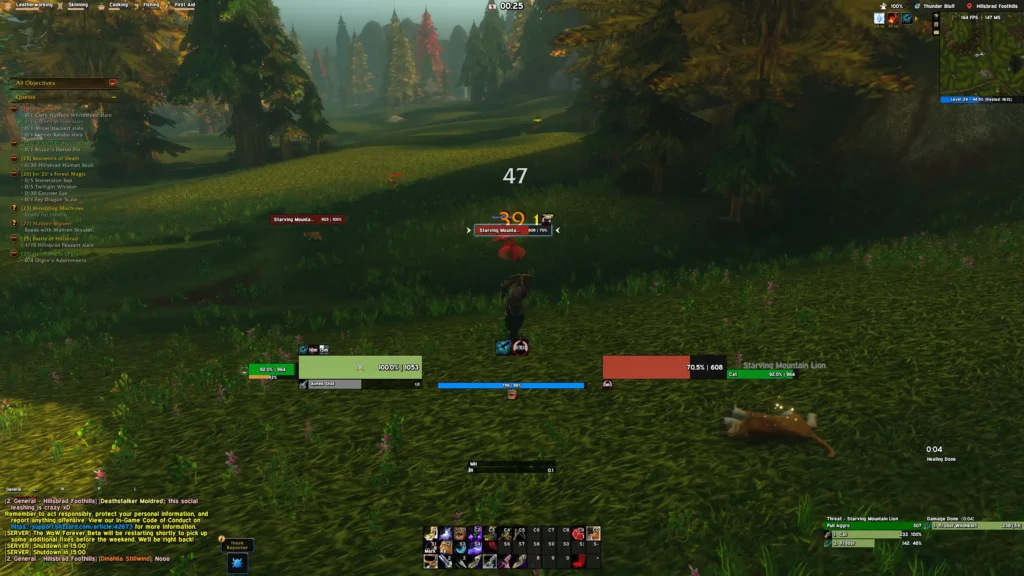
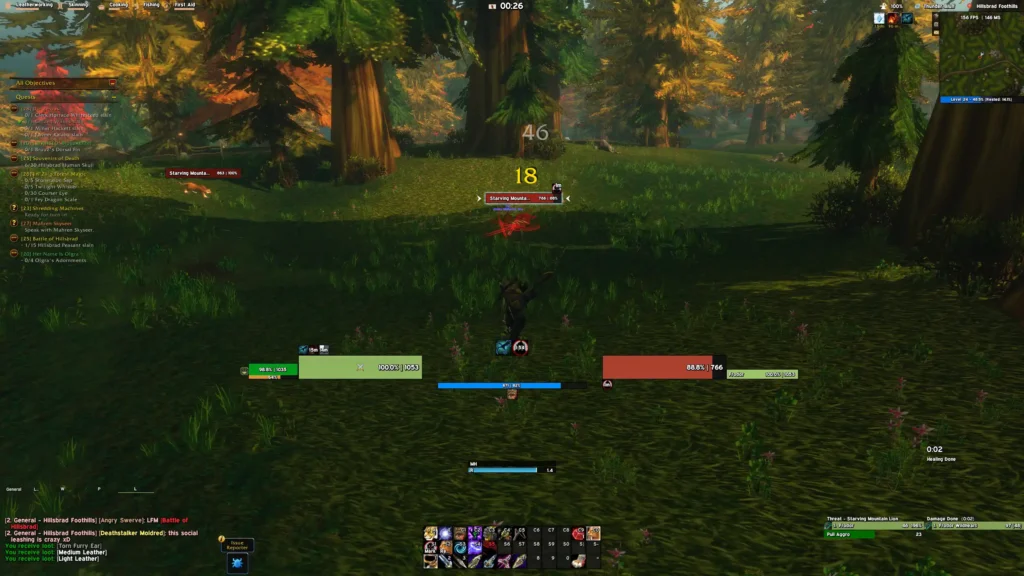
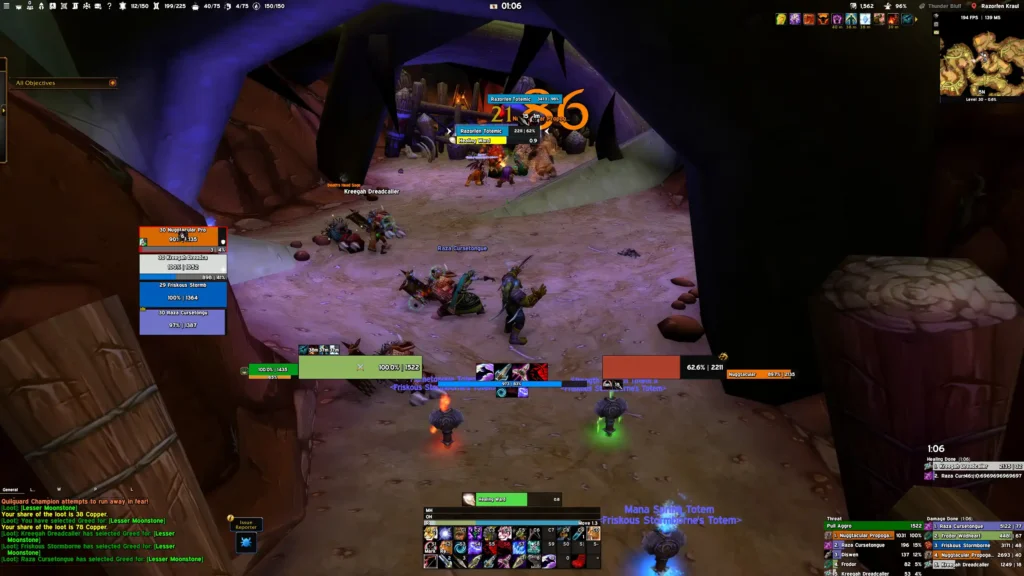
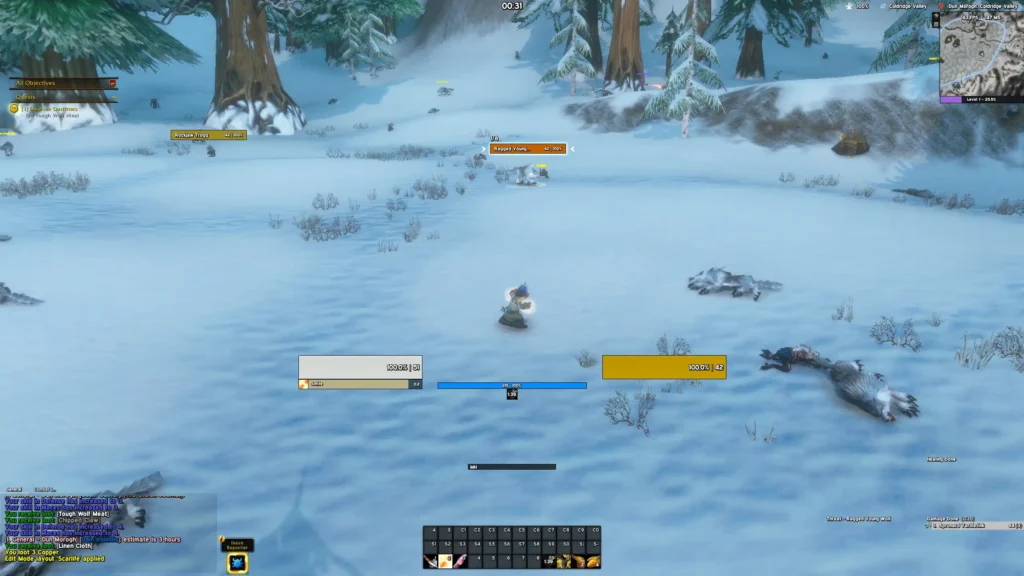
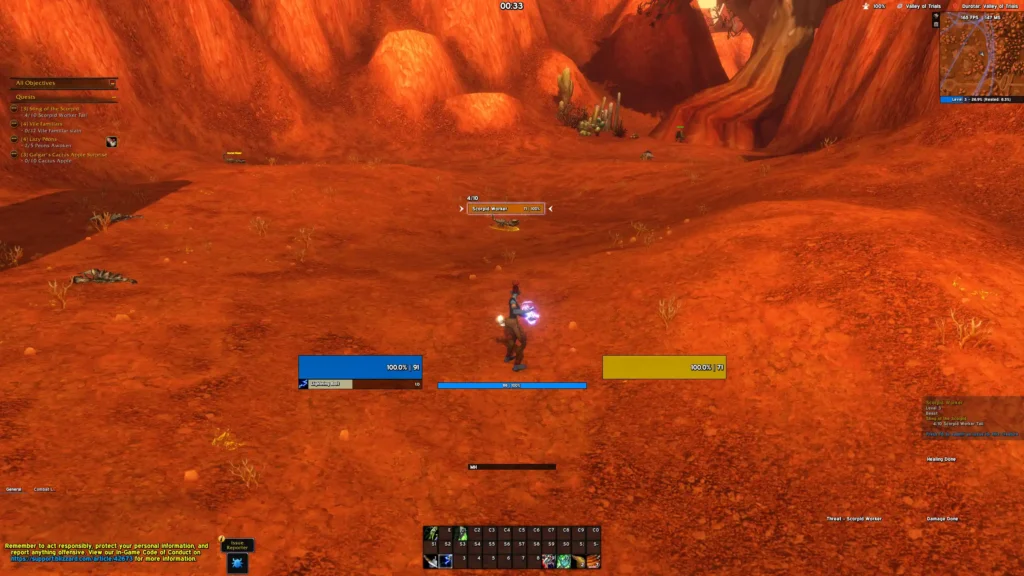
Open a screenshot to inspect the complete interface and the Ellesmere options included with the xScarlife profile.
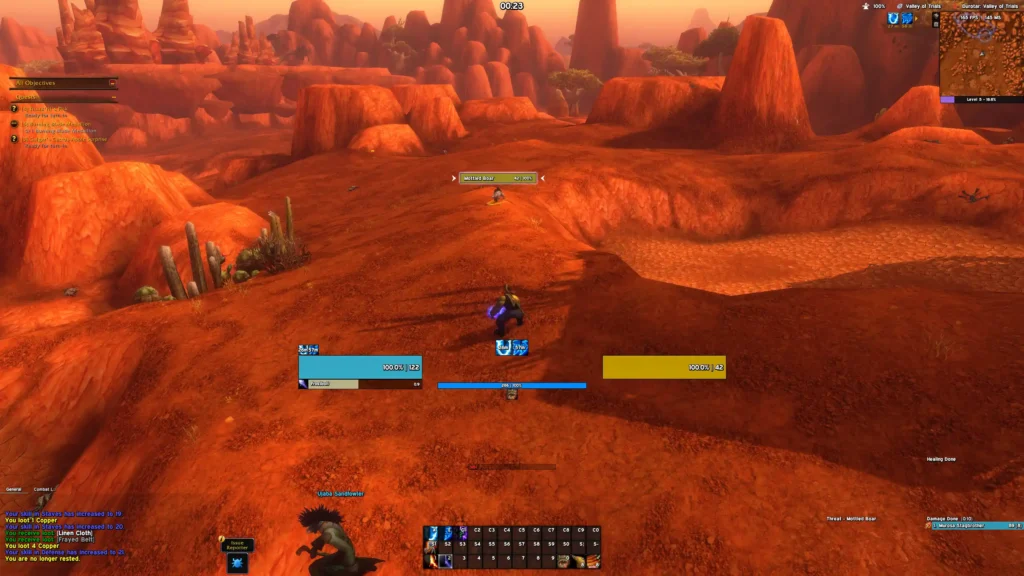
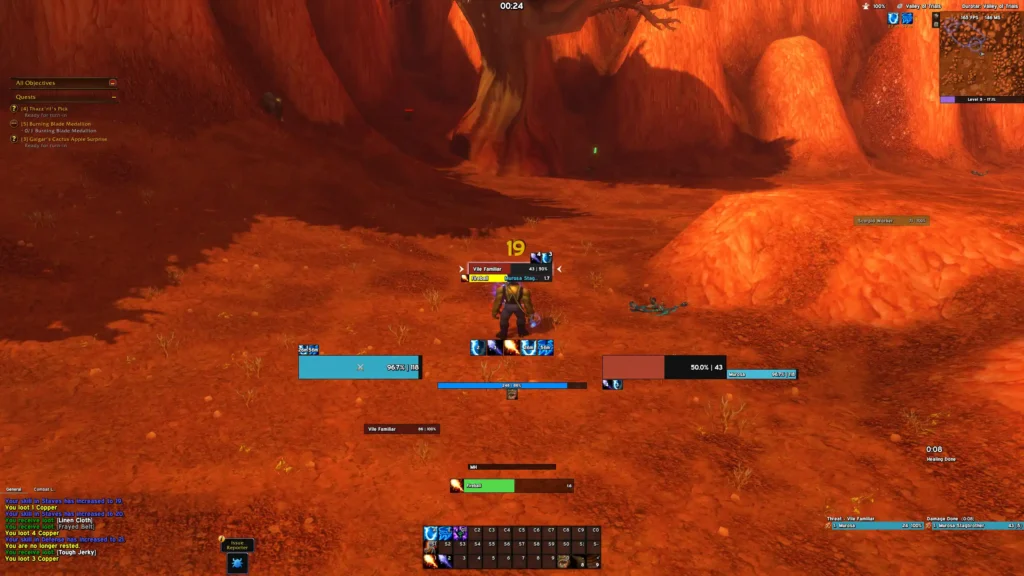
Use the xScarlifeUI feedback page for problems with this profile or its setup instructions. For issues with EllesmereUI itself, contact the AddOn developer.